> ## Documentation Index
> Fetch the complete documentation index at: https://docs.vectorshift.ai/llms.txt
> Use this file to discover all available pages before exploring further.
# Merge - Pick First
> Recombine multiple conditional paths by selecting the first available input value.
Add it in Python with `pipeline.add(name="...").merge(...)`. See the SDK reference.
The Merge node in Pick First mode recombines multiple execution paths by selecting the first non-empty input value. Use it after a Condition or AI Routing node when only one branch executes at a time and you need to funnel its result back into a single downstream path — for example, picking the result from whichever extraction workflow the Condition node activated, or selecting the first successful API response from multiple fallback branches.
## Core Functionality
* Selects the first non-empty input value from multiple input fields
* Designed to recombine paths created by Condition or AI Routing nodes
* Supports configurable input/output types (Text, Integer, Decimal, File, JSON, and more)
* Allows adding or removing input fields dynamically
* Outputs a single value of the configured type (not a list)
## Tool Inputs
* `Function` — The merge strategy. Set to `Pick First` to select the first non-empty input. Dropdown.
* `Type` — The expected data type of the input and output fields. Dropdown with options: `Text`, `List of Text`, `Integer`, `Any`, `Decimal`, `Boolean`, `File`, `Audio`, `Image`, `JSON`, `Timestamp`, `Path`, `List of Files`, `Knowledge Base`. Default: `Text`.
* `Input 1` — The first input value. Connect from an upstream node or enter directly. Type matches the selected `Type`.
* `Input 2` — The second input value. Same as above.
* Additional inputs can be added with **+ Add Field**.
## Tool Outputs
* `output` — A single value of the configured type. Contains the first non-empty input value, evaluated in order from Input 1 to Input N.
***
### Overview
In workflows, the Merge node in Pick First mode sits downstream of branching nodes (Condition, AI Routing) to funnel their outputs back into a single path. It checks each input field in order and passes through the first one that has a value. This is the standard pattern for recombining conditional branches where only one branch executes at a time — the active branch produces a result, inactive branches are empty, and Pick First selects the one that ran.
### Use Cases
* Funnel the result from whichever Condition branch executed back into a single downstream path
* Select the first successful API response when multiple provider endpoints are tried in parallel
* Pick the output of the matching document type extractor after AI Routing classifies the document
* Merge results from cascading fallback logic — try the primary path, fall back to secondary
* Recombine outputs from locale-specific processing branches into a single result
### How It Works
#### Step 1: Add the Merge Node
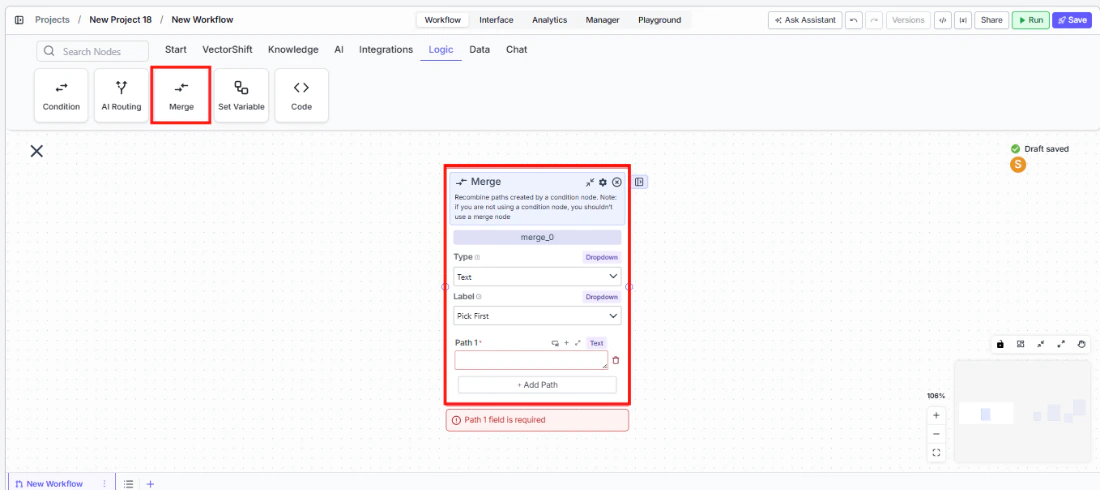
In the workflow canvas, click the **Logic** tab in the node palette and click **Merge**. Drag it onto the canvas.
 #### Step 2: Set the Function to Pick First
In the Merge node, set the **Function** dropdown to **Pick First**. This configures the node to select the first non-empty input.
#### Step 3: Configure the Type
Select the expected data type from the **Type** dropdown. This determines what kind of data the input fields accept and what the output contains. The type should match what your upstream branches produce.
#### Step 4: Connect Input Fields
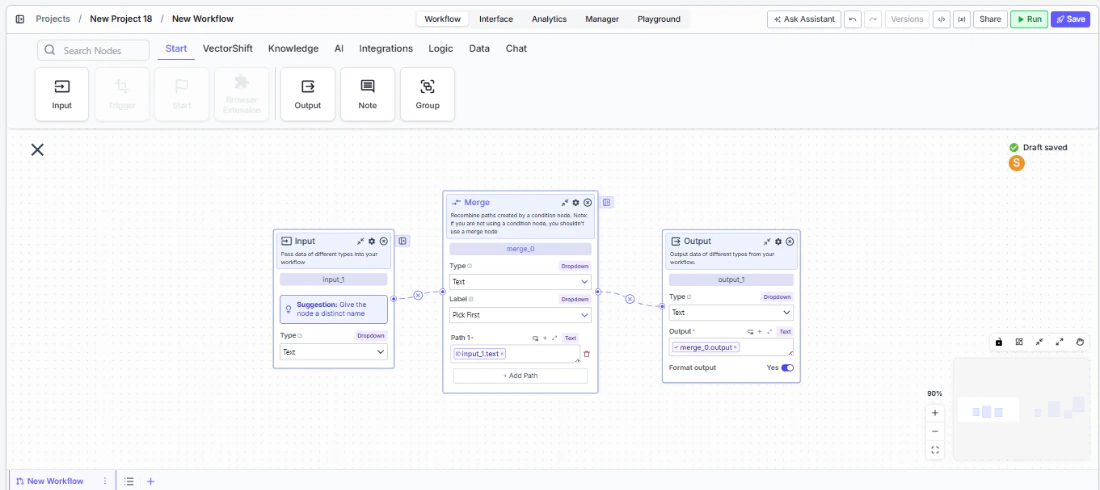
The node starts with two input fields (**Input 1** and **Input 2**). Connect each to the output of a different branch — typically from a Condition or AI Routing node. Input 1 has the highest priority; if it has a value, it is selected regardless of other inputs.
Click **+ Add Field** to add more input fields. Click the red **−** button to remove one.
#### Step 5: Connect the Output
The `output` handle on the right side of the node produces the single selected value. Connect it to downstream nodes for further processing.
#### Step 2: Set the Function to Pick First
In the Merge node, set the **Function** dropdown to **Pick First**. This configures the node to select the first non-empty input.
#### Step 3: Configure the Type
Select the expected data type from the **Type** dropdown. This determines what kind of data the input fields accept and what the output contains. The type should match what your upstream branches produce.
#### Step 4: Connect Input Fields
The node starts with two input fields (**Input 1** and **Input 2**). Connect each to the output of a different branch — typically from a Condition or AI Routing node. Input 1 has the highest priority; if it has a value, it is selected regardless of other inputs.
Click **+ Add Field** to add more input fields. Click the red **−** button to remove one.
#### Step 5: Connect the Output
The `output` handle on the right side of the node produces the single selected value. Connect it to downstream nodes for further processing.
 #### Step 6: Test the Workflow
Click **Run** to test. The Merge node evaluates inputs in order and outputs the first non-empty value.
### Settings
| Setting | Type | Default | Description |
| ------------- | --------------- | ---------- | -------------------------------------------------------------------------------------------------------------------------------------------------------------------------------- |
| `Function` | Dropdown | Pick First | The merge strategy. Set to Pick First to select the first non-empty input. |
| `Type` | Dropdown | Text | The data type of input fields and output. Options: Text, List of Text, Integer, Any, Decimal, Boolean, File, Audio, Image, JSON, Timestamp, Path, List of Files, Knowledge Base. |
| `Input 1` | Configured type | — | First input value (highest priority). Connect from upstream. |
| `Input 2` | Configured type | — | Second input value. Connect from upstream. |
| `+ Add Field` | Button | — | Adds additional input fields. |
### Best Practices
* **Use after Condition nodes for single-branch results.** Pick First is the standard pattern when a Condition node routes to exactly one branch and you need to continue with a single output downstream.
* **Order inputs by priority.** Input 1 is evaluated first. If multiple branches could produce a value, connect the highest-priority branch to Input 1.
* **Match the Type to your upstream outputs.** Set the `Type` dropdown to match the data type your branches produce. A mismatch can cause unexpected behavior.
* **Pair with Join All when needed.** If some workflows need all branch results (not just the first), use a second Merge node in Join All mode for those cases.
* **Use for fallback patterns.** Connect a primary data source to Input 1 and a fallback to Input 2. If the primary fails (produces no output), Pick First automatically selects the fallback.
### Related Templates
Compares two or more spreadsheets to identify discrepancies, changes, and anomalies.
Side-by-side comparison of documents to highlight differences and track revisions.
Validates data and documents against predefined rules, schemas, or compliance standards.
Reconciles financial statements by identifying mismatches and resolving discrepancies.
### Common Issues
For help with common configuration issues, see the [Common Issues](/support) page.
#### Step 6: Test the Workflow
Click **Run** to test. The Merge node evaluates inputs in order and outputs the first non-empty value.
### Settings
| Setting | Type | Default | Description |
| ------------- | --------------- | ---------- | -------------------------------------------------------------------------------------------------------------------------------------------------------------------------------- |
| `Function` | Dropdown | Pick First | The merge strategy. Set to Pick First to select the first non-empty input. |
| `Type` | Dropdown | Text | The data type of input fields and output. Options: Text, List of Text, Integer, Any, Decimal, Boolean, File, Audio, Image, JSON, Timestamp, Path, List of Files, Knowledge Base. |
| `Input 1` | Configured type | — | First input value (highest priority). Connect from upstream. |
| `Input 2` | Configured type | — | Second input value. Connect from upstream. |
| `+ Add Field` | Button | — | Adds additional input fields. |
### Best Practices
* **Use after Condition nodes for single-branch results.** Pick First is the standard pattern when a Condition node routes to exactly one branch and you need to continue with a single output downstream.
* **Order inputs by priority.** Input 1 is evaluated first. If multiple branches could produce a value, connect the highest-priority branch to Input 1.
* **Match the Type to your upstream outputs.** Set the `Type` dropdown to match the data type your branches produce. A mismatch can cause unexpected behavior.
* **Pair with Join All when needed.** If some workflows need all branch results (not just the first), use a second Merge node in Join All mode for those cases.
* **Use for fallback patterns.** Connect a primary data source to Input 1 and a fallback to Input 2. If the primary fails (produces no output), Pick First automatically selects the fallback.
### Related Templates
Compares two or more spreadsheets to identify discrepancies, changes, and anomalies.
Side-by-side comparison of documents to highlight differences and track revisions.
Validates data and documents against predefined rules, schemas, or compliance standards.
Reconciles financial statements by identifying mismatches and resolving discrepancies.
### Common Issues
For help with common configuration issues, see the [Common Issues](/support) page.