> ## Documentation Index
> Fetch the complete documentation index at: https://docs.vectorshift.ai/llms.txt
> Use this file to discover all available pages before exploring further.
# Knowledge Base Fetch Document Content
> Fetch the full content of a specific document from a knowledge base by reading through all its chunks.
Add it in Python with `pipeline.add(name="...").knowledge_base_fetch_document_content(...)`. See the SDK reference.
The Knowledge Base Fetch Document Content node retrieves the complete text content of a specific document stored in a knowledge base. Unlike semantic search which returns relevant chunks, this node returns the entire document — similar to a `cat` command for reading a file. Use it when you need the full text of a known document — for example, retrieving a complete contract for clause-by-clause analysis, or pulling an entire earnings transcript for summarization.
## Core Functionality
* Fetch the full content of a specific document from a knowledge base by its item ID
* Reassemble all chunks belonging to the document into a single formatted text output
* Control the maximum number of chunks included to handle very large documents
* Works with any document type stored in the knowledge base (PDFs, text files, web pages, etc.)
## Tool Inputs
* `Knowledge Base` \* — **Required** · Knowledge Base selector · The knowledge base containing the document to fetch.
* `Item ID` \* — **Required** · Text · The item ID of the document to fetch content from. Typically obtained from a Knowledge Base Fetch Items or Knowledge Base List Items node.
* `Max Chunks` — Integer · Default: `200` · Maximum number of chunks to include in the content. *(Advanced setting)*
\* indicates a required field.
## Tool Outputs
* `document_content` — Text · The full document content as formatted text, reassembled from all chunks.
## Overview
When added as a tool inside an agent, Knowledge Base Fetch Document Content lets the agent retrieve the complete text of a specific document during a conversation. The agent can use this to read full documents when a user asks about a specific file, rather than relying on chunk-based search results that may miss important context.
## Use Cases
* **Full contract review** — An agent fetches the complete text of a specific contract from a legal knowledge base when a user asks to review all terms and conditions.
* **Earnings transcript analysis** — An agent retrieves a full earnings call transcript to answer detailed questions that span multiple sections of the document.
* **Regulatory filing retrieval** — A compliance agent fetches complete SEC filings when a user needs to review an entire document rather than isolated excerpts.
* **Policy document lookup** — An HR or compliance agent retrieves full policy documents by ID when users need to understand the complete policy context.
* **Report compilation** — An agent fetches multiple full documents by their IDs to compile a comprehensive research report from existing materials.
## How It Works
1. **Add the tool** — In the agent builder, open the tool panel and navigate to the **Knowledge** category. Select **Knowledge Base Fetch Document Content** to add it as a tool.
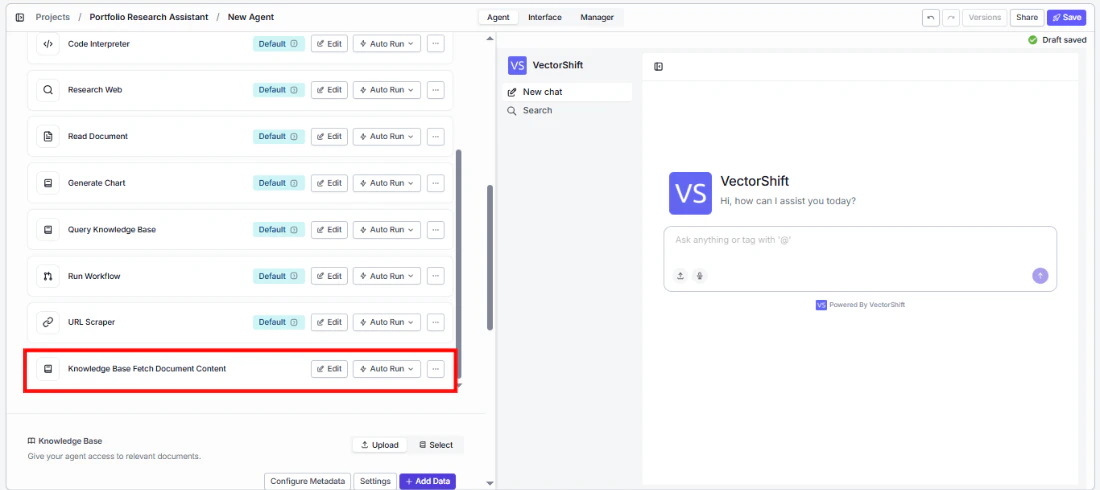 2. **Select the knowledge base** — Use the `Knowledge Base` selector to choose which knowledge base contains the documents.
3. **Configure input fields** — The `Item ID` field can be left open for the agent to fill dynamically (e.g., after listing items with another tool), or locked to a fixed value for a specific document. Click the sparkle icon to switch fields between dynamic and static mode.
2. **Select the knowledge base** — Use the `Knowledge Base` selector to choose which knowledge base contains the documents.
3. **Configure input fields** — The `Item ID` field can be left open for the agent to fill dynamically (e.g., after listing items with another tool), or locked to a fixed value for a specific document. Click the sparkle icon to switch fields between dynamic and static mode.
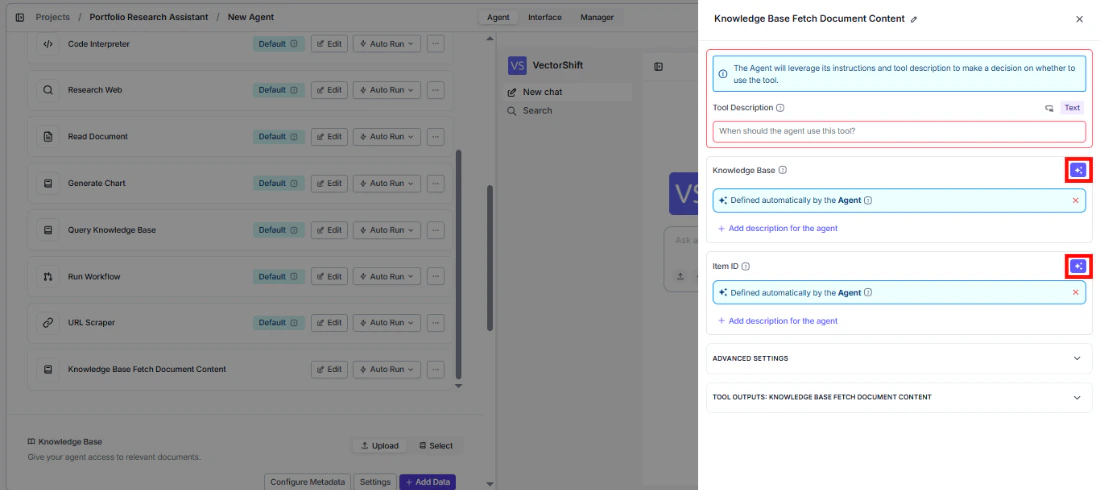 4. **Write a Tool Description** — Describe when the agent should fetch full document content. Example: *"Use this tool to read the complete content of a specific document from the knowledge base. Provide the item ID of the document you want to read."*
5. **Set Auto Run behavior** — Choose how the tool executes:
* **Auto Run** — Fetches the document immediately.
* **Require User Approval** — Pauses for user confirmation.
* **Let Agent Decide** — The agent determines whether approval is needed.
4. **Write a Tool Description** — Describe when the agent should fetch full document content. Example: *"Use this tool to read the complete content of a specific document from the knowledge base. Provide the item ID of the document you want to read."*
5. **Set Auto Run behavior** — Choose how the tool executes:
* **Auto Run** — Fetches the document immediately.
* **Require User Approval** — Pauses for user confirmation.
* **Let Agent Decide** — The agent determines whether approval is needed.
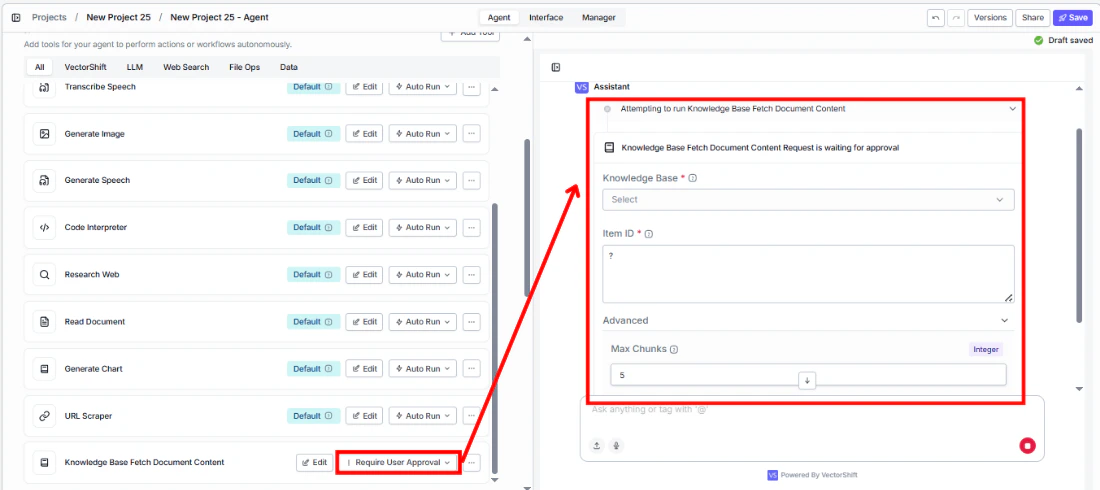 6. **Test the tool** — Ask the agent to retrieve a specific document and verify the full content is returned.
## Settings
* `Knowledge Base` — Knowledge Base selector · Default: none · The knowledge base containing the target document.
* `Item ID` — Text · Default: none · The ID of the document to fetch.
* `Tool Description` — Text · Default: none · Describes the tool's purpose to the agent.
* `Auto Run` — Dropdown · Default: Auto Run · Controls execution behavior.
**Advanced Settings:**
* `Max Chunks` — Integer · Default: `200` · Limits the number of chunks included in the output.
## Best Practices
* **Pair with Knowledge Base Fetch Items** — Use the Knowledge Base Fetch Items tool first to let the agent discover available documents and their IDs, then use this tool to read the full content of a specific document.
* **Set appropriate max chunks** — For very large documents (e.g., annual reports), consider increasing Max Chunks beyond 200 to ensure the full document is returned. For shorter documents, the default is sufficient.
* **Use for targeted retrieval** — This tool is best when the agent knows which specific document to read. For broad queries across many documents, use Knowledge Base Agent or Semantic Search instead.
* **Include item ID guidance in the tool description** — Tell the agent how to obtain item IDs (e.g., from a previous Fetch Items call) so it knows the correct workflow.
## Related Templates
Analyzes contracts to extract key terms, flag risks, and summarize obligations.
Side-by-side comparison of documents to highlight differences and track revisions.
Audits existing controls and drafts new control documentation based on compliance requirements.
Generates and reviews term sheets by extracting and validating key deal terms.
## Common Issues
For troubleshooting and common issues, see the [Common Issues](/docs/common-issues) page.
## Overview
In workflows, the Knowledge Base Fetch Document Content node retrieves the complete text of a specific document from a knowledge base. Connect an upstream node to provide the item ID, and wire the document content output to downstream nodes for processing — such as summarization, analysis, or formatting.
## Use Cases
* **Document processing workflow** — A workflow lists all documents in a knowledge base, iterates over each, and fetches the full content for batch processing (e.g., summarization or classification).
* **Targeted document extraction** — A workflow receives a document ID from user input, fetches the full content, and passes it to an LLM for analysis.
* **Compliance document review** — A workflow fetches specific regulatory documents by ID and runs them through compliance checking nodes.
* **Report assembly** — A workflow fetches multiple documents by their IDs and combines their content into a consolidated report.
## How It Works
1. **Add the node** — On the workflow canvas, open the node panel and navigate to the **Knowledge** category. Drag **Knowledge Base Fetch Document Content** onto the canvas.
6. **Test the tool** — Ask the agent to retrieve a specific document and verify the full content is returned.
## Settings
* `Knowledge Base` — Knowledge Base selector · Default: none · The knowledge base containing the target document.
* `Item ID` — Text · Default: none · The ID of the document to fetch.
* `Tool Description` — Text · Default: none · Describes the tool's purpose to the agent.
* `Auto Run` — Dropdown · Default: Auto Run · Controls execution behavior.
**Advanced Settings:**
* `Max Chunks` — Integer · Default: `200` · Limits the number of chunks included in the output.
## Best Practices
* **Pair with Knowledge Base Fetch Items** — Use the Knowledge Base Fetch Items tool first to let the agent discover available documents and their IDs, then use this tool to read the full content of a specific document.
* **Set appropriate max chunks** — For very large documents (e.g., annual reports), consider increasing Max Chunks beyond 200 to ensure the full document is returned. For shorter documents, the default is sufficient.
* **Use for targeted retrieval** — This tool is best when the agent knows which specific document to read. For broad queries across many documents, use Knowledge Base Agent or Semantic Search instead.
* **Include item ID guidance in the tool description** — Tell the agent how to obtain item IDs (e.g., from a previous Fetch Items call) so it knows the correct workflow.
## Related Templates
Analyzes contracts to extract key terms, flag risks, and summarize obligations.
Side-by-side comparison of documents to highlight differences and track revisions.
Audits existing controls and drafts new control documentation based on compliance requirements.
Generates and reviews term sheets by extracting and validating key deal terms.
## Common Issues
For troubleshooting and common issues, see the [Common Issues](/docs/common-issues) page.
## Overview
In workflows, the Knowledge Base Fetch Document Content node retrieves the complete text of a specific document from a knowledge base. Connect an upstream node to provide the item ID, and wire the document content output to downstream nodes for processing — such as summarization, analysis, or formatting.
## Use Cases
* **Document processing workflow** — A workflow lists all documents in a knowledge base, iterates over each, and fetches the full content for batch processing (e.g., summarization or classification).
* **Targeted document extraction** — A workflow receives a document ID from user input, fetches the full content, and passes it to an LLM for analysis.
* **Compliance document review** — A workflow fetches specific regulatory documents by ID and runs them through compliance checking nodes.
* **Report assembly** — A workflow fetches multiple documents by their IDs and combines their content into a consolidated report.
## How It Works
1. **Add the node** — On the workflow canvas, open the node panel and navigate to the **Knowledge** category. Drag **Knowledge Base Fetch Document Content** onto the canvas.
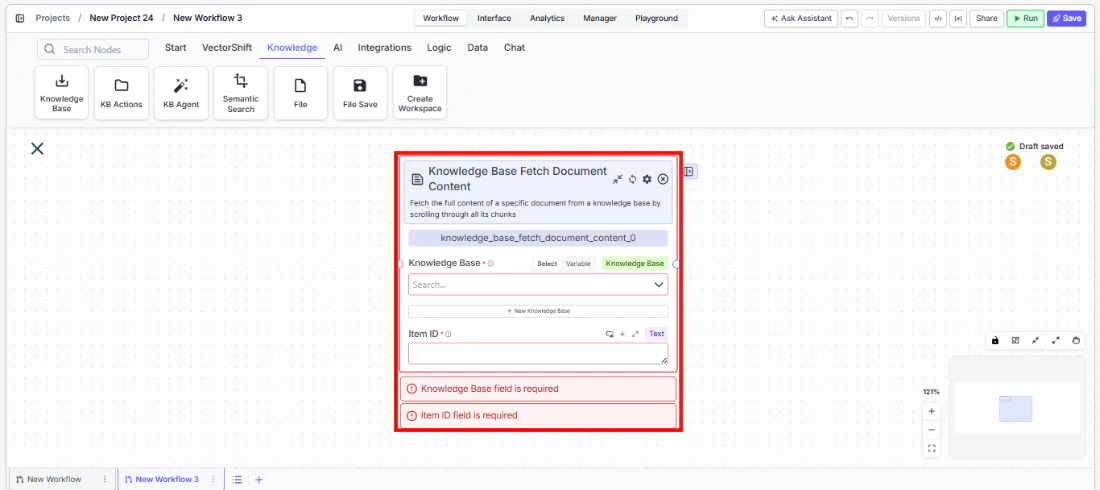 2. **Select the knowledge base** — Use the `Knowledge Base` selector to choose the knowledge base. This field is required. You can select from existing knowledge bases or connect a reference from an upstream node.
3. **Provide the item ID** — Enter an item ID in the `Item ID` field or connect an upstream node that outputs the document ID. This field is required.
4. **Connect the output** — Wire the `document_content` output to downstream nodes for processing.
5. **Run the workflow** — Execute the workflow. The node fetches the document content and passes it downstream.
## Settings
* `Knowledge Base` — Knowledge Base selector · **Required** · The knowledge base to fetch from. Supports Select, Variable, and Knowledge Base connection modes.
* `Item ID` — Text · **Required** · The item ID of the document to fetch.
**Advanced Settings:**
* `Max Chunks` — Integer · Default: `200` · Maximum number of chunks to include in the output.
## Best Practices
* **Chain with Knowledge Base Fetch Items** — Use a Knowledge Base Fetch Items node upstream to get the list of available document IDs, then pass them to this node.
* **Handle large documents carefully** — Documents with more than 200 chunks will be truncated at the default Max Chunks value. Increase this setting for large financial reports or legal documents.
* **Validate item IDs** — Ensure the item ID exists in the selected knowledge base. Invalid IDs will result in empty or error outputs.
* **Use for full-document operations** — This node is ideal when you need the entire document (e.g., for summarization or conversion). For targeted retrieval of relevant passages, use Semantic Search instead.
## Related Templates
Analyzes contracts to extract key terms, flag risks, and summarize obligations.
Side-by-side comparison of documents to highlight differences and track revisions.
Audits existing controls and drafts new control documentation based on compliance requirements.
Generates and reviews term sheets by extracting and validating key deal terms.
## Common Issues
For troubleshooting and common issues, see the [Common Issues](/docs/common-issues) page.
2. **Select the knowledge base** — Use the `Knowledge Base` selector to choose the knowledge base. This field is required. You can select from existing knowledge bases or connect a reference from an upstream node.
3. **Provide the item ID** — Enter an item ID in the `Item ID` field or connect an upstream node that outputs the document ID. This field is required.
4. **Connect the output** — Wire the `document_content` output to downstream nodes for processing.
5. **Run the workflow** — Execute the workflow. The node fetches the document content and passes it downstream.
## Settings
* `Knowledge Base` — Knowledge Base selector · **Required** · The knowledge base to fetch from. Supports Select, Variable, and Knowledge Base connection modes.
* `Item ID` — Text · **Required** · The item ID of the document to fetch.
**Advanced Settings:**
* `Max Chunks` — Integer · Default: `200` · Maximum number of chunks to include in the output.
## Best Practices
* **Chain with Knowledge Base Fetch Items** — Use a Knowledge Base Fetch Items node upstream to get the list of available document IDs, then pass them to this node.
* **Handle large documents carefully** — Documents with more than 200 chunks will be truncated at the default Max Chunks value. Increase this setting for large financial reports or legal documents.
* **Validate item IDs** — Ensure the item ID exists in the selected knowledge base. Invalid IDs will result in empty or error outputs.
* **Use for full-document operations** — This node is ideal when you need the entire document (e.g., for summarization or conversion). For targeted retrieval of relevant passages, use Semantic Search instead.
## Related Templates
Analyzes contracts to extract key terms, flag risks, and summarize obligations.
Side-by-side comparison of documents to highlight differences and track revisions.
Audits existing controls and drafts new control documentation based on compliance requirements.
Generates and reviews term sheets by extracting and validating key deal terms.
## Common Issues
For troubleshooting and common issues, see the [Common Issues](/docs/common-issues) page.