> ## Documentation Index
> Fetch the complete documentation index at: https://docs.vectorshift.ai/llms.txt
> Use this file to discover all available pages before exploring further.
# Knowledge Base Agent
> Query a knowledge base using an agentic approach that intelligently determines the best retrieval strategy.
Add it in Python with `pipeline.add(name="...").knowledge_base_agent(...)`. See the SDK reference.
The Knowledge Base Agent node queries a knowledge base using an AI-powered agentic approach with tools. Instead of performing a simple vector search, it uses an LLM to reason about the query, determine the best retrieval strategy, and synthesize a coherent answer from the retrieved context. Use it to build intelligent Q\&A systems — for example, answering complex compliance questions across a regulatory document library, or synthesizing insights from multiple earnings reports stored in a knowledge base.
## Core Functionality
* Query a knowledge base using an AI agent that reasons about the best retrieval approach
* Choose between Fast, Focused, and Deep query modes to balance speed and thoroughness
* Optionally return the source context and chunks used to generate the answer
* Accept additional context (e.g., conversation history) to improve query relevance
* Select the LLM provider and model powering the agent's reasoning
## Tool Inputs
* `Knowledge Base` \* — **Required** · Knowledge Base selector · The knowledge base to query.
* `Query` \* — **Required** · Text · The natural language query. The agent uses this to determine the best way to query the knowledge base. Include the key criteria needed to answer the query.
* `Mode` — Dropdown · Default: `Focused` · Options: `Fast`, `Focused`, `Deep` · Controls the query effort — Fast for quick answers, Focused for balanced depth, Deep for thorough analysis.
* `Return Answer` — Boolean · Default: `true` · When enabled, generates a synthesized answer from the knowledge base.
* `Return Context` — Boolean · Default: `false` · When enabled, returns the relevant context and chunks used to generate the answer.
* `Accept Additional Context` — Boolean · Default: `false` · When enabled, shows an additional context input to provide supplementary information to the agent. *(Advanced setting)*
* `Additional Context` — Text · Optional · Additional context to help the agent understand the query better (e.g., conversation history, user preferences). Appears when `Accept Additional Context` is enabled.
* `Provider` — Dropdown · Default: `Google` · The LLM provider used by the agent. *(Advanced setting)*
* `Model` — Dropdown · Default: `gemini-3-flash-preview` · The LLM model used by the agent. *(Advanced setting)*
\* indicates a required field.
## Tool Outputs
* `answer` — Text · The answer synthesized by the agent from the knowledge base.
* `context` — Text · The formatted context and chunks used by the agent to generate the answer. Only present when `Return Context` is enabled.
## Overview
When added as a tool inside an agent, the Knowledge Base Agent enables your primary agent to delegate complex knowledge base queries to a specialized retrieval agent. The primary agent passes the query, the retrieval agent reasons about the best search strategy, fetches relevant chunks, and returns a synthesized answer — all within the conversation flow.
## Use Cases
* **Regulatory Q\&A assistant** — A client-facing agent delegates SEC filing questions to a Knowledge Base Agent tool connected to a regulatory document library, returning precise citations.
* **Investment research copilot** — An analyst agent queries a knowledge base of earnings transcripts and annual reports to answer specific questions about company performance.
* **Policy lookup for advisors** — A financial advisor agent uses a Knowledge Base Agent to retrieve and summarize relevant sections from internal compliance policies.
* **Due diligence support** — An M\&A agent queries a knowledge base of target company documents to answer specific due diligence questions with sourced context.
* **Client portfolio FAQ** — A wealth management agent queries product knowledge bases to answer client questions about fund strategies, fees, and performance history.
## How It Works
1. **Add the tool** — In the agent builder, open the tool panel and navigate to the **Knowledge** category. Select **Knowledge Base Agent** to add it as a tool.
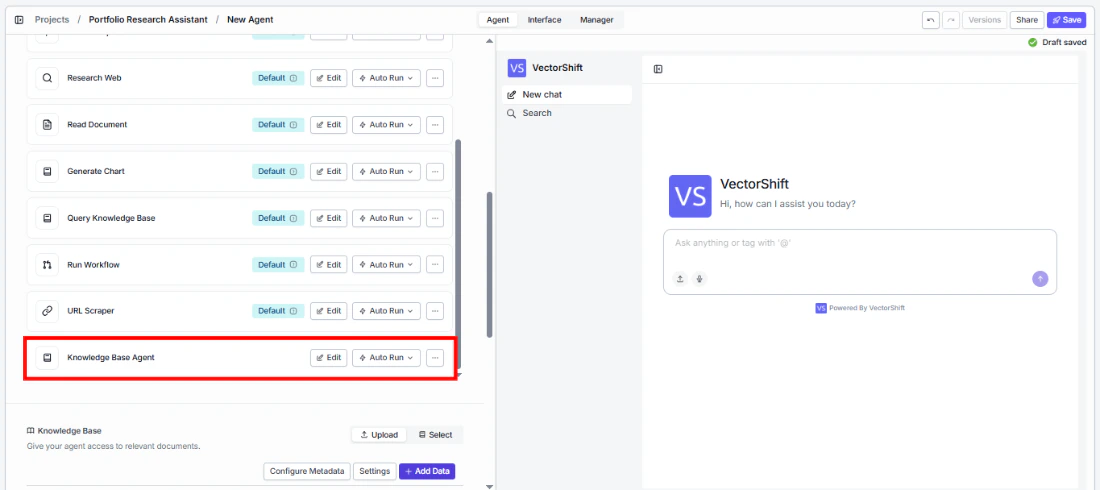 2. **Select the knowledge base** — Use the `Knowledge Base` selector to choose which knowledge base the agent will query.
3. **Configure input fields** — The `Query` field can be left open for the primary agent to fill dynamically based on conversation context, or locked to a fixed value for consistent queries. Click the sparkle icon to switch fields between dynamic and static mode.
2. **Select the knowledge base** — Use the `Knowledge Base` selector to choose which knowledge base the agent will query.
3. **Configure input fields** — The `Query` field can be left open for the primary agent to fill dynamically based on conversation context, or locked to a fixed value for consistent queries. Click the sparkle icon to switch fields between dynamic and static mode.
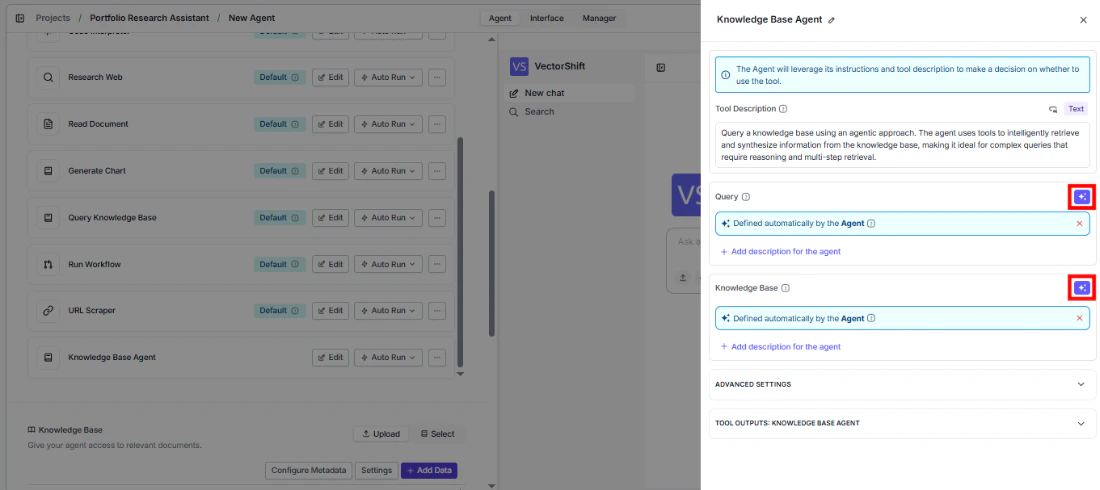 4. **Write a Tool Description** — Describe when the agent should use this tool. Example: *"Use this tool to answer questions about SEC regulatory filings. Provide a specific, detailed query including the regulation name or section number."*
5. **Set Auto Run behavior** — Choose how the tool executes:
* **Auto Run** — Queries the knowledge base immediately.
* **Require User Approval** — Pauses for user confirmation before querying.
* **Let Agent Decide** — The agent determines whether approval is needed based on context.
4. **Write a Tool Description** — Describe when the agent should use this tool. Example: *"Use this tool to answer questions about SEC regulatory filings. Provide a specific, detailed query including the regulation name or section number."*
5. **Set Auto Run behavior** — Choose how the tool executes:
* **Auto Run** — Queries the knowledge base immediately.
* **Require User Approval** — Pauses for user confirmation before querying.
* **Let Agent Decide** — The agent determines whether approval is needed based on context.
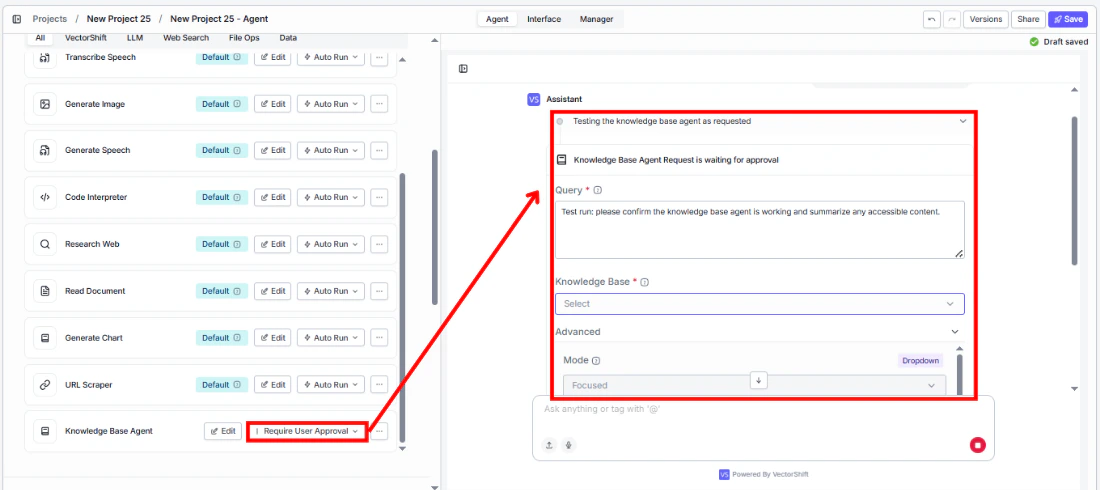 6. **Test the tool** — Send a question in the chat interface that should trigger the knowledge base query and verify the agent returns a relevant, sourced answer.
## Settings
* `Knowledge Base` — Knowledge Base selector · Default: none · The knowledge base to query.
* `Tool Description` — Text · Default: none · Describes when and how the agent should use this tool.
* `Auto Run` — Dropdown · Default: Auto Run · Controls execution behavior.
**Advanced Settings:**
* `Provider` — Dropdown · Default: `Google` · LLM provider for the retrieval agent.
* `Model` — Dropdown · Default: `gemini-3-flash-preview` · LLM model for the retrieval agent.
* `Mode` — Dropdown · Default: `Focused` · Query depth (Fast, Focused, Deep).
* `Return Context` — Boolean · Default: `false` · Return source chunks alongside the answer.
* `Accept Additional Context` — Boolean · Default: `false` · Enable additional context input.
## Best Practices
* **Write specific queries** — The more specific the query, the better the agent can target its retrieval. Include entity names, date ranges, and specific metrics rather than broad questions.
* **Use Deep mode for complex questions** — When queries span multiple documents or require cross-referencing (e.g., comparing financials across quarters), use Deep mode for thorough analysis.
* **Enable Return Context for auditable answers** — In regulated industries, enable Return Context so users can verify the sources behind every answer.
* **Provide additional context for follow-ups** — Enable Accept Additional Context and pass conversation history so the agent understands follow-up questions in context.
* **Match the knowledge base to the query domain** — Connect the tool to a knowledge base that contains the relevant documents. A single agent can have multiple Knowledge Base Agent tools, each pointing to a different knowledge base.
## Related Templates
Analyzes contracts to extract key terms, flag risks, and summarize obligations.
Handles investor inquiries related to portfolios, statements, and fund performance.
Answers employee questions about internal policies and flags potential compliance issues.
Centralized searchable repository of investment committee memos for quick reference.
## Common Issues
For troubleshooting and common issues, see the [Common Issues](/docs/common-issues) page.
## Overview
In workflows, the Knowledge Base Agent node acts as an intelligent retrieval step that queries a knowledge base, reasons about the best search strategy, and returns a synthesized answer. Connect upstream nodes to provide the query and optionally additional context, then wire the answer output to downstream nodes for further processing or display.
## Use Cases
* **Automated report enrichment** — A workflow collects key questions from a template, passes each to a Knowledge Base Agent node connected to a research library, and assembles the answers into a formatted report.
* **Compliance screening workflow** — A workflow feeds extracted document clauses into a Knowledge Base Agent to check them against a regulatory knowledge base and flag potential issues.
* **Customer inquiry routing** — A workflow uses a Knowledge Base Agent to attempt answering a customer question; if the confidence is low, it routes to a human agent.
* **Batch Q\&A processing** — A workflow iterates over a list of analyst questions and queries a knowledge base for each, outputting a structured Q\&A document.
## How It Works
1. **Add the node** — On the workflow canvas, open the node panel and navigate to the **Knowledge** category. Drag **Knowledge Base Agent** onto the canvas.
6. **Test the tool** — Send a question in the chat interface that should trigger the knowledge base query and verify the agent returns a relevant, sourced answer.
## Settings
* `Knowledge Base` — Knowledge Base selector · Default: none · The knowledge base to query.
* `Tool Description` — Text · Default: none · Describes when and how the agent should use this tool.
* `Auto Run` — Dropdown · Default: Auto Run · Controls execution behavior.
**Advanced Settings:**
* `Provider` — Dropdown · Default: `Google` · LLM provider for the retrieval agent.
* `Model` — Dropdown · Default: `gemini-3-flash-preview` · LLM model for the retrieval agent.
* `Mode` — Dropdown · Default: `Focused` · Query depth (Fast, Focused, Deep).
* `Return Context` — Boolean · Default: `false` · Return source chunks alongside the answer.
* `Accept Additional Context` — Boolean · Default: `false` · Enable additional context input.
## Best Practices
* **Write specific queries** — The more specific the query, the better the agent can target its retrieval. Include entity names, date ranges, and specific metrics rather than broad questions.
* **Use Deep mode for complex questions** — When queries span multiple documents or require cross-referencing (e.g., comparing financials across quarters), use Deep mode for thorough analysis.
* **Enable Return Context for auditable answers** — In regulated industries, enable Return Context so users can verify the sources behind every answer.
* **Provide additional context for follow-ups** — Enable Accept Additional Context and pass conversation history so the agent understands follow-up questions in context.
* **Match the knowledge base to the query domain** — Connect the tool to a knowledge base that contains the relevant documents. A single agent can have multiple Knowledge Base Agent tools, each pointing to a different knowledge base.
## Related Templates
Analyzes contracts to extract key terms, flag risks, and summarize obligations.
Handles investor inquiries related to portfolios, statements, and fund performance.
Answers employee questions about internal policies and flags potential compliance issues.
Centralized searchable repository of investment committee memos for quick reference.
## Common Issues
For troubleshooting and common issues, see the [Common Issues](/docs/common-issues) page.
## Overview
In workflows, the Knowledge Base Agent node acts as an intelligent retrieval step that queries a knowledge base, reasons about the best search strategy, and returns a synthesized answer. Connect upstream nodes to provide the query and optionally additional context, then wire the answer output to downstream nodes for further processing or display.
## Use Cases
* **Automated report enrichment** — A workflow collects key questions from a template, passes each to a Knowledge Base Agent node connected to a research library, and assembles the answers into a formatted report.
* **Compliance screening workflow** — A workflow feeds extracted document clauses into a Knowledge Base Agent to check them against a regulatory knowledge base and flag potential issues.
* **Customer inquiry routing** — A workflow uses a Knowledge Base Agent to attempt answering a customer question; if the confidence is low, it routes to a human agent.
* **Batch Q\&A processing** — A workflow iterates over a list of analyst questions and queries a knowledge base for each, outputting a structured Q\&A document.
## How It Works
1. **Add the node** — On the workflow canvas, open the node panel and navigate to the **Knowledge** category. Drag **Knowledge Base Agent** onto the canvas.
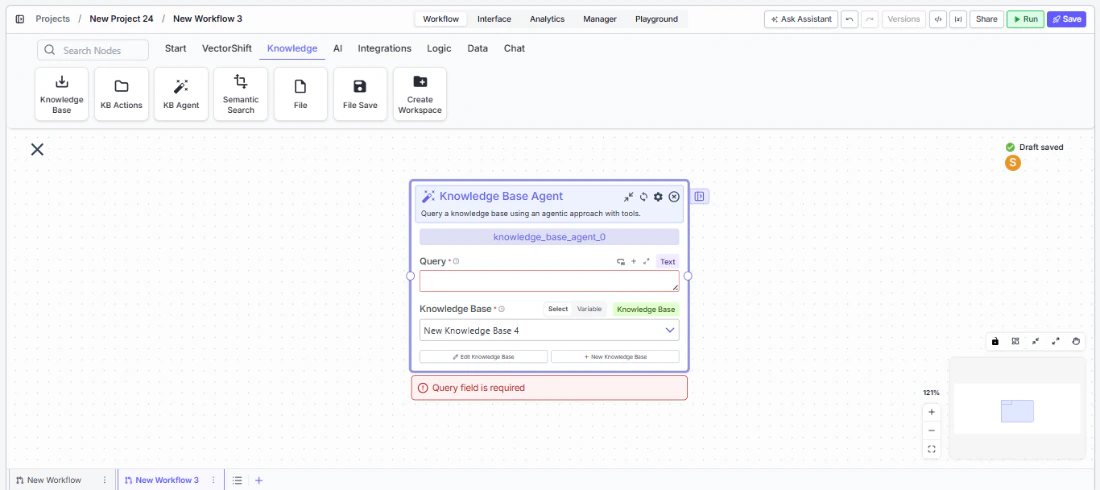 2. **Set the query** — Enter a query in the `Query` field or connect an upstream text node. This field is required.
3. **Select the knowledge base** — Use the `Knowledge Base` selector to choose the target knowledge base. This field is required. You can select from existing knowledge bases or connect a knowledge base reference from an upstream node.
4. **Configure mode and options** — Set the query `Mode` (Fast, Focused, Deep), toggle `Return Context` if you need source chunks, and enable `Accept Additional Context` if supplementary information is available.
2. **Set the query** — Enter a query in the `Query` field or connect an upstream text node. This field is required.
3. **Select the knowledge base** — Use the `Knowledge Base` selector to choose the target knowledge base. This field is required. You can select from existing knowledge bases or connect a knowledge base reference from an upstream node.
4. **Configure mode and options** — Set the query `Mode` (Fast, Focused, Deep), toggle `Return Context` if you need source chunks, and enable `Accept Additional Context` if supplementary information is available.
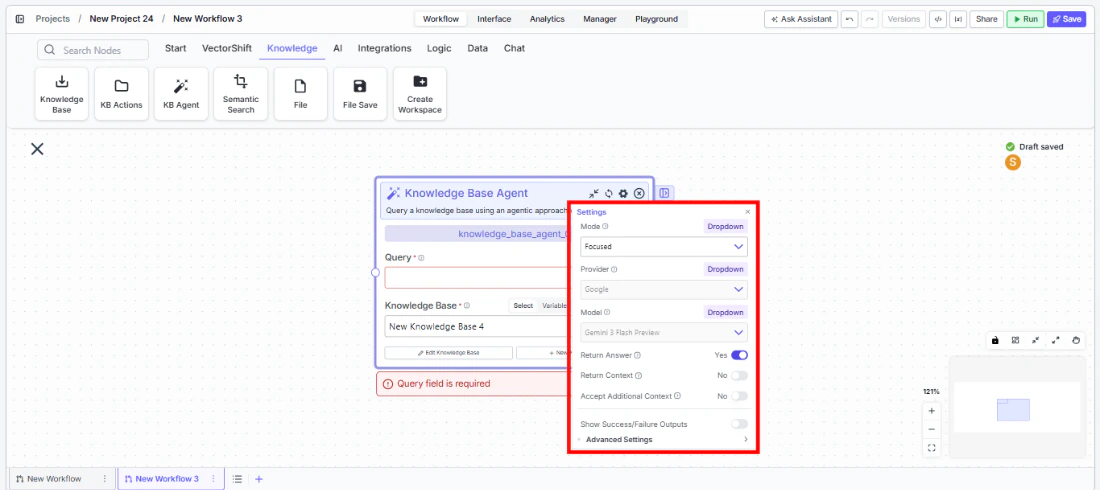 5. **Configure advanced settings** — Optionally change the `Provider` and `Model` for the retrieval agent, and adjust settings like `Return Context` and `Accept Additional Context`.
6. **Connect outputs** — Wire the `answer` output (and optionally `context`) to downstream nodes for further processing.
5. **Configure advanced settings** — Optionally change the `Provider` and `Model` for the retrieval agent, and adjust settings like `Return Context` and `Accept Additional Context`.
6. **Connect outputs** — Wire the `answer` output (and optionally `context`) to downstream nodes for further processing.
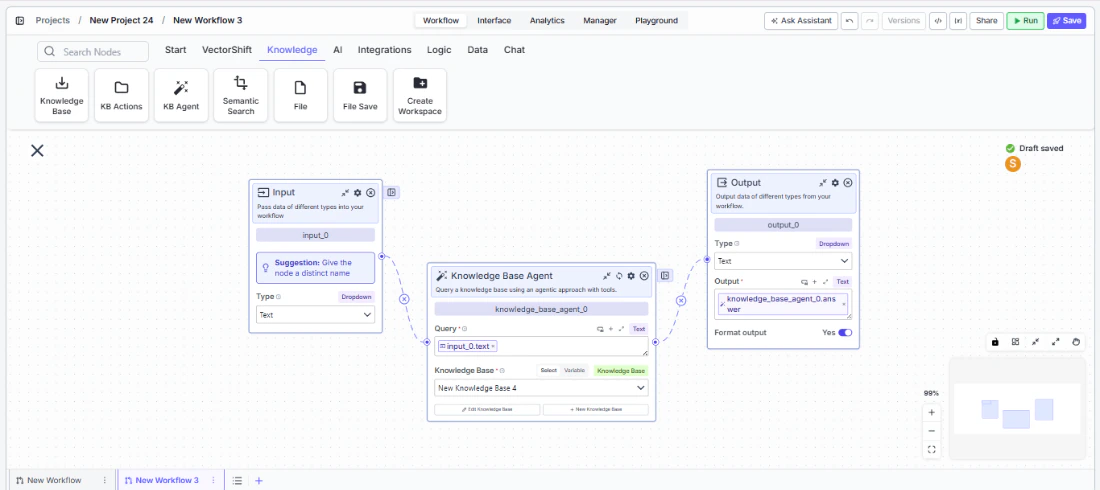 7. **Run the workflow** — Execute the workflow. The node queries the knowledge base and passes the synthesized answer downstream.
## Settings
* `Query` — Text · **Required** · The natural language query to send to the knowledge base agent.
* `Knowledge Base` — Knowledge Base selector · **Required** · The knowledge base to query. Supports Select, Variable, and Knowledge Base connection modes.
**Advanced Settings:**
* `Provider` — Dropdown · Default: `Google` · LLM provider for the retrieval agent.
* `Model` — Dropdown · Default: `gemini-3-flash-preview` · LLM model for the retrieval agent.
* `Mode` — Dropdown · Default: `Focused` · Query depth (Fast, Focused, Deep).
* `Return Context` — Boolean · Default: `false` · Return the source context and chunks used.
* `Accept Additional Context` — Boolean · Default: `false` · Show an additional context input field.
* `Show Source/Chunk Output` — Boolean · Controls whether source and chunk details are shown in outputs.
## Best Practices
* **Choose the right mode for your use case** — Use Fast for simple lookups, Focused for standard Q\&A, and Deep when queries require reasoning across multiple documents.
* **Enable Return Context for traceability** — In financial workflows, always enable Return Context so downstream nodes can include citations and source references in generated reports.
* **Use variables for dynamic knowledge base selection** — When building multi-tenant workflows, connect the Knowledge Base input via a variable to dynamically select the correct knowledge base per run.
* **Pair with condition nodes** — Add a condition node after the Knowledge Base Agent to check answer quality or relevance before passing results downstream.
* **Provide additional context from upstream** — Enable Accept Additional Context and connect relevant upstream outputs (e.g., extracted entities, user preferences) to improve retrieval accuracy.
## Related Templates
Analyzes contracts to extract key terms, flag risks, and summarize obligations.
Handles investor inquiries related to portfolios, statements, and fund performance.
Answers employee questions about internal policies and flags potential compliance issues.
Centralized searchable repository of investment committee memos for quick reference.
## Common Issues
For troubleshooting and common issues, see the [Common Issues](/docs/common-issues) page.
7. **Run the workflow** — Execute the workflow. The node queries the knowledge base and passes the synthesized answer downstream.
## Settings
* `Query` — Text · **Required** · The natural language query to send to the knowledge base agent.
* `Knowledge Base` — Knowledge Base selector · **Required** · The knowledge base to query. Supports Select, Variable, and Knowledge Base connection modes.
**Advanced Settings:**
* `Provider` — Dropdown · Default: `Google` · LLM provider for the retrieval agent.
* `Model` — Dropdown · Default: `gemini-3-flash-preview` · LLM model for the retrieval agent.
* `Mode` — Dropdown · Default: `Focused` · Query depth (Fast, Focused, Deep).
* `Return Context` — Boolean · Default: `false` · Return the source context and chunks used.
* `Accept Additional Context` — Boolean · Default: `false` · Show an additional context input field.
* `Show Source/Chunk Output` — Boolean · Controls whether source and chunk details are shown in outputs.
## Best Practices
* **Choose the right mode for your use case** — Use Fast for simple lookups, Focused for standard Q\&A, and Deep when queries require reasoning across multiple documents.
* **Enable Return Context for traceability** — In financial workflows, always enable Return Context so downstream nodes can include citations and source references in generated reports.
* **Use variables for dynamic knowledge base selection** — When building multi-tenant workflows, connect the Knowledge Base input via a variable to dynamically select the correct knowledge base per run.
* **Pair with condition nodes** — Add a condition node after the Knowledge Base Agent to check answer quality or relevance before passing results downstream.
* **Provide additional context from upstream** — Enable Accept Additional Context and connect relevant upstream outputs (e.g., extracted entities, user preferences) to improve retrieval accuracy.
## Related Templates
Analyzes contracts to extract key terms, flag risks, and summarize obligations.
Handles investor inquiries related to portfolios, statements, and fund performance.
Answers employee questions about internal policies and flags potential compliance issues.
Centralized searchable repository of investment committee memos for quick reference.
## Common Issues
For troubleshooting and common issues, see the [Common Issues](/docs/common-issues) page.