> ## Documentation Index
> Fetch the complete documentation index at: https://docs.vectorshift.ai/llms.txt
> Use this file to discover all available pages before exploring further.
# File
> Load a static file into a workflow as a raw file or process it into text.
Add it in Python with `pipeline.add(name="...").file(...)`. See the SDK reference.
The File node loads a static file into your workflow, either as a raw file reference or processed into text. You can upload a file directly or reference an existing file from the VectorShift platform by name. Use it to bring documents into your workflow for processing — for example, loading a PDF contract for extraction, feeding a CSV into a data transformation workflow, or providing an image for analysis.
## Core Functionality
* Upload a file directly into the workflow or select an existing file from the VectorShift Files tab
* Output the file as a raw file reference, as processed text, or both
* Choose the document processing model (Default, Llama Parse, Textract, Reducto) for text extraction
* Reference files by name for dynamic file selection at runtime
## Tool Inputs
* `File` \* — **Required** · File upload · The file to load into the workflow. Drag and drop or click to upload.
* `File Name` \* — **Required** · Text · The name of the file. When using "File Name" mode, this references an existing file on the VectorShift platform.
* `Selected Option` — Dropdown · Default: `Select/ Upload File` · Options: `Select/ Upload File`, `File Name` · Choose between uploading a file directly or referencing a file by name from the platform.
* `File Parser` — Dropdown · Default: `Default` · Options: `Default`, `Llama Parse`, `Textract`, `Reducto` · The processing model for document parsing. Default includes standard OCR. Llama Parse handles complex features like tables and charts (0.3¢/page). Textract provides advanced extraction (1.5¢/page).
\* indicates a required field.
## Tool Outputs
* `file` — File · The raw file that was loaded.
* `processed_text` — Text · The text content extracted from the file using the selected parser.
* `file_name` — Text · The name of the loaded file.
## Overview
In workflows, the File node provides a static file as input to the workflow. The file is loaded once at build time (or referenced by name at runtime) and its outputs — raw file, processed text, and file name — can be wired to any downstream node that accepts those types.
## Use Cases
* **Document processing workflow** — Load a PDF financial report into the workflow and pass the processed text to an LLM for summarization or data extraction.
* **Template-based generation** — Load a document template file and pass it to downstream nodes that fill in dynamic content.
* **File format conversion** — Load a file and pass it through conversion nodes (e.g., CSV to Excel, text to file).
* **Knowledge base population** — Load a file and pass it to a Knowledge Base Loader node to add it to a knowledge base.
## How It Works
1. **Add the node** — On the workflow canvas, open the node panel and navigate to the **Knowledge** category. Drag **File** onto the canvas.
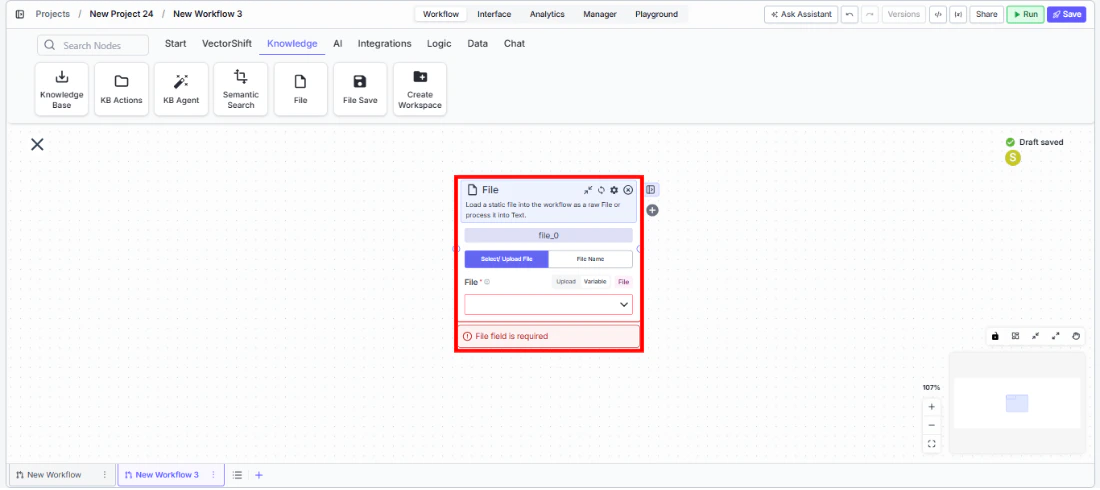 2. **Choose the input mode** — Select `Select/ Upload File` to upload a file directly, or `File Name` to reference an existing file from the VectorShift Files tab by name.
3. **Provide the file** — Upload a file or enter the file name depending on the selected mode.
4. **Configure the parser** *(optional)* — If you need processed text output, choose the appropriate file parser (Default, Llama Parse, Textract, or Reducto) based on your document complexity.
5. **Connect outputs** — Wire `file`, `processed_text`, or `file_name` to downstream nodes as needed.
2. **Choose the input mode** — Select `Select/ Upload File` to upload a file directly, or `File Name` to reference an existing file from the VectorShift Files tab by name.
3. **Provide the file** — Upload a file or enter the file name depending on the selected mode.
4. **Configure the parser** *(optional)* — If you need processed text output, choose the appropriate file parser (Default, Llama Parse, Textract, or Reducto) based on your document complexity.
5. **Connect outputs** — Wire `file`, `processed_text`, or `file_name` to downstream nodes as needed.
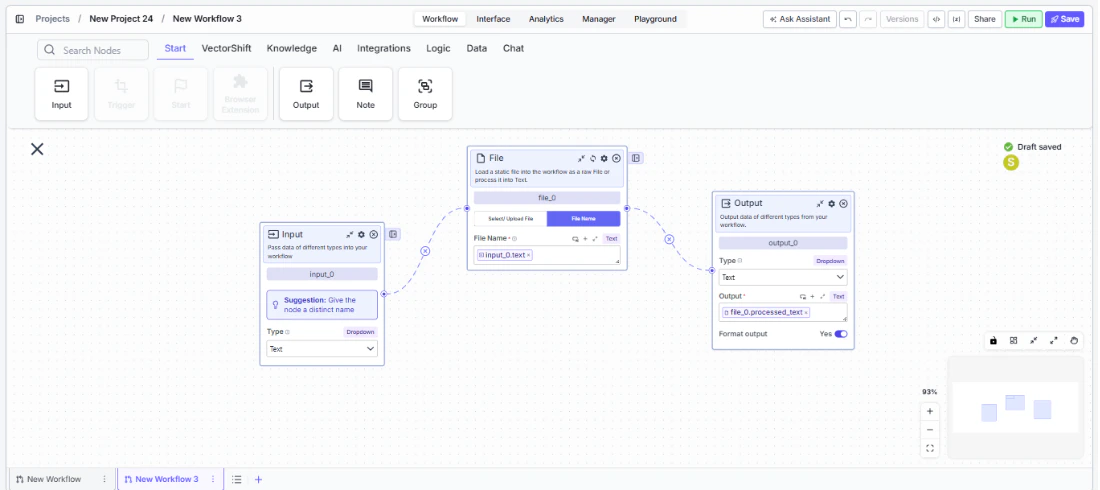 6. **Run the workflow** — Execute the workflow. The node loads the file and passes its outputs downstream.
## Settings
* `Selected Option` — Dropdown · Default: `Select/ Upload File` · Upload directly or reference by name.
* `File` — File upload · **Required** (when uploading) · The file to load.
* `File Name` — Text · **Required** (when referencing by name) · The file name on the VectorShift platform.
* `File Parser` — Dropdown · Default: `Default` · Document processing model.
## Best Practices
* **Choose the right parser for your documents** — Use Default for standard text documents. Use Llama Parse for documents with complex tables, charts, or multi-column layouts. Use Textract for the most accurate extraction from scanned documents.
* **Use File Name mode for dynamic workflows** — When building reusable workflows, reference files by name so the same workflow can process different files by changing the name parameter.
* **Connect the appropriate output** — Use `file` when downstream nodes need the raw file (e.g., Knowledge Base Loader). Use `processed_text` when downstream nodes need text content (e.g., LLM nodes, text transformation nodes).
## Related Templates
Automatically categorizes and tags incoming documents based on content and type.
Analyzes contracts to extract key terms, flag risks, and summarize obligations.
Generates and reviews term sheets by extracting and validating key deal terms.
Validates data and documents against predefined rules, schemas, or compliance standards.
## Common Issues
For troubleshooting and common issues, see the [Common Issues](/docs/common-issues) page.
6. **Run the workflow** — Execute the workflow. The node loads the file and passes its outputs downstream.
## Settings
* `Selected Option` — Dropdown · Default: `Select/ Upload File` · Upload directly or reference by name.
* `File` — File upload · **Required** (when uploading) · The file to load.
* `File Name` — Text · **Required** (when referencing by name) · The file name on the VectorShift platform.
* `File Parser` — Dropdown · Default: `Default` · Document processing model.
## Best Practices
* **Choose the right parser for your documents** — Use Default for standard text documents. Use Llama Parse for documents with complex tables, charts, or multi-column layouts. Use Textract for the most accurate extraction from scanned documents.
* **Use File Name mode for dynamic workflows** — When building reusable workflows, reference files by name so the same workflow can process different files by changing the name parameter.
* **Connect the appropriate output** — Use `file` when downstream nodes need the raw file (e.g., Knowledge Base Loader). Use `processed_text` when downstream nodes need text content (e.g., LLM nodes, text transformation nodes).
## Related Templates
Automatically categorizes and tags incoming documents based on content and type.
Analyzes contracts to extract key terms, flag risks, and summarize obligations.
Generates and reviews term sheets by extracting and validating key deal terms.
Validates data and documents against predefined rules, schemas, or compliance standards.
## Common Issues
For troubleshooting and common issues, see the [Common Issues](/docs/common-issues) page.