> ## Documentation Index
> Fetch the complete documentation index at: https://docs.vectorshift.ai/llms.txt
> Use this file to discover all available pages before exploring further.
# Chat Memory
> Give connected nodes access to conversation history for multi-turn chatbot interactions.
Add it in Python with `pipeline.add(name="...").chat_memory(...)`. See the SDK reference.
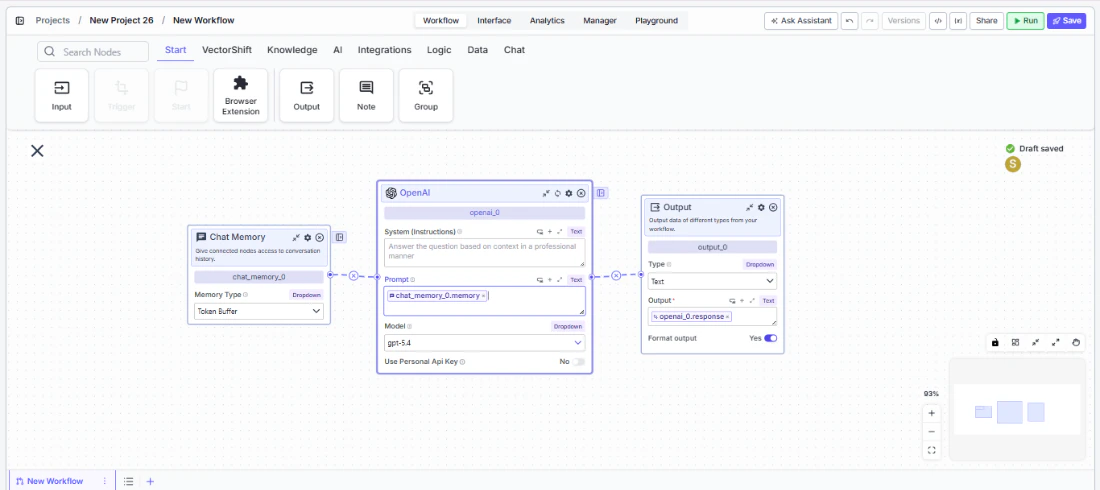 The Chat Memory node gives connected nodes access to conversation history, enabling multi-turn chatbot interactions where the LLM remembers what was said earlier. Use it to build chatbots that maintain context across messages — for example, a financial advisor bot that references earlier questions about a portfolio, a support agent that tracks the issue progression, or a research assistant that builds on prior analysis.
## Core Functionality
* Stores and retrieves conversation history from deployed chatbot sessions
* Supports multiple memory strategies: Token Buffer, Message Buffer, Full - Formatted, Full - Raw, and Vector Database
* Outputs formatted conversation history as text that LLM nodes can consume as context
* Configurable memory window to control how much history is retained
The Chat Memory node gives connected nodes access to conversation history, enabling multi-turn chatbot interactions where the LLM remembers what was said earlier. Use it to build chatbots that maintain context across messages — for example, a financial advisor bot that references earlier questions about a portfolio, a support agent that tracks the issue progression, or a research assistant that builds on prior analysis.
## Core Functionality
* Stores and retrieves conversation history from deployed chatbot sessions
* Supports multiple memory strategies: Token Buffer, Message Buffer, Full - Formatted, Full - Raw, and Vector Database
* Outputs formatted conversation history as text that LLM nodes can consume as context
* Configurable memory window to control how much history is retained
 ## Tool Inputs
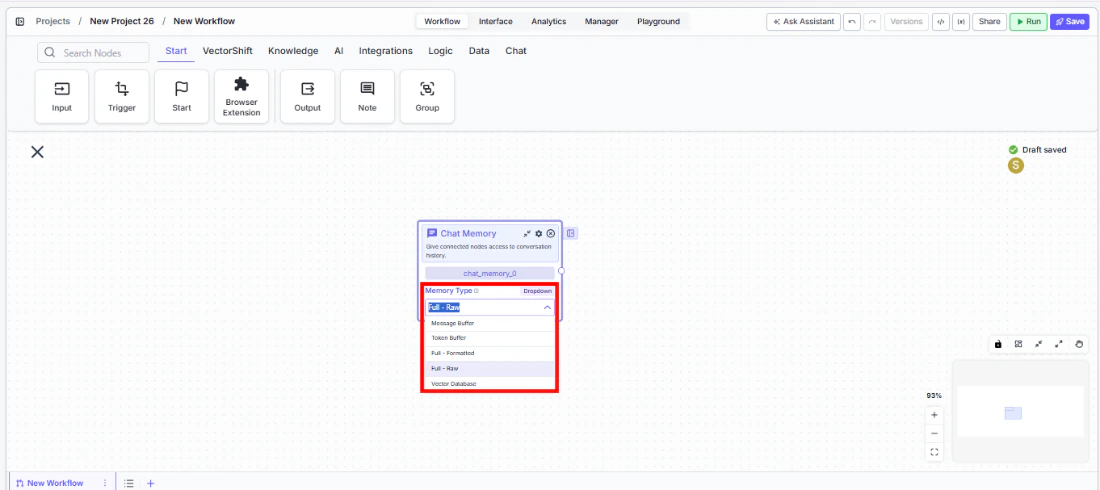
* `Memory Type` — Dropdown. Default: `Token Buffer`. The strategy used to store and retrieve conversation history. Options:
* `Message Buffer` — Returns a set number of previous consecutive messages
* `Token Buffer` — Returns previous consecutive messages up to a token limit
* `Full - Formatted` — Returns all previous chat history as formatted text
* `Full - Raw` — Returns all previous chat history as a structured list with type and message fields
* `Vector Database` — Stores all messages in a vector database and returns the most similar messages based on the current user message
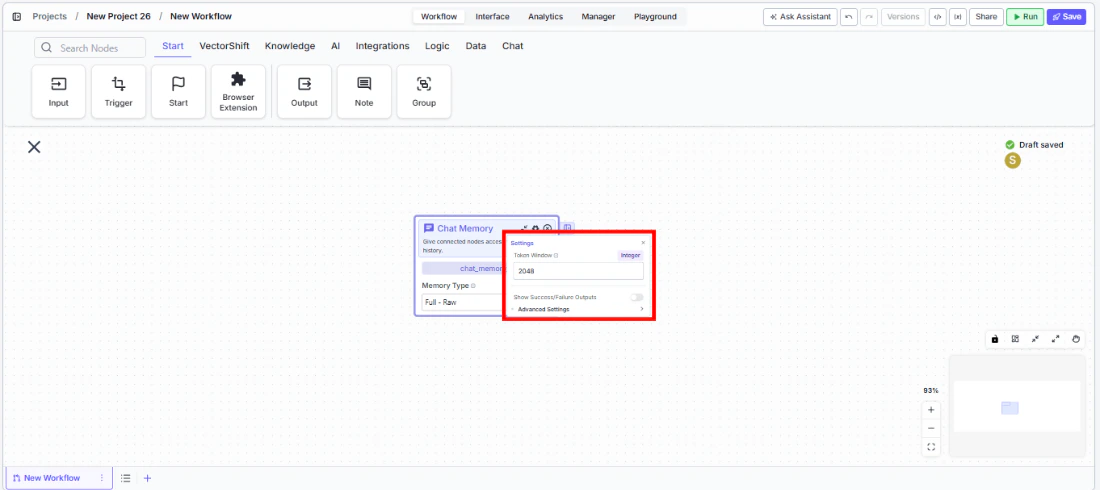
* `Token Window` — Integer. The memory window size. Default varies by memory type: `2048` for Token Buffer, `10` for Message Buffer, `20` for Vector Database. Not shown for Full - Formatted or Full - Raw.
## Tool Inputs
* `Memory Type` — Dropdown. Default: `Token Buffer`. The strategy used to store and retrieve conversation history. Options:
* `Message Buffer` — Returns a set number of previous consecutive messages
* `Token Buffer` — Returns previous consecutive messages up to a token limit
* `Full - Formatted` — Returns all previous chat history as formatted text
* `Full - Raw` — Returns all previous chat history as a structured list with type and message fields
* `Vector Database` — Stores all messages in a vector database and returns the most similar messages based on the current user message
* `Token Window` — Integer. The memory window size. Default varies by memory type: `2048` for Token Buffer, `10` for Message Buffer, `20` for Vector Database. Not shown for Full - Formatted or Full - Raw.
 ## Tool Outputs
* `memory` — Text. The conversation history in the format of the selected memory type.
***
### Overview
In workflows, the Chat Memory node connects to an LLM node to provide conversation context. When deployed as a chatbot, the node captures each exchange and feeds the relevant history back to the LLM on every turn — so the model can reference previous messages, follow up on earlier topics, and maintain a coherent conversation. The memory type you choose controls how history is formatted and how much is retained.
### Use Cases
* Build a financial advisor chatbot that remembers earlier questions about portfolio allocations and references them in follow-up answers
* Create a customer support bot that tracks the full issue progression across multiple messages without losing context
* Power an onboarding assistant that guides users through a multi-step process and recalls answers from earlier steps
* Enable a research chatbot that builds on prior analysis, referencing data points mentioned in previous turns
* Implement a compliance Q\&A bot that remembers which regulations have already been discussed to avoid repetition
### How It Works
#### Step 1: Add the Chat Memory Node
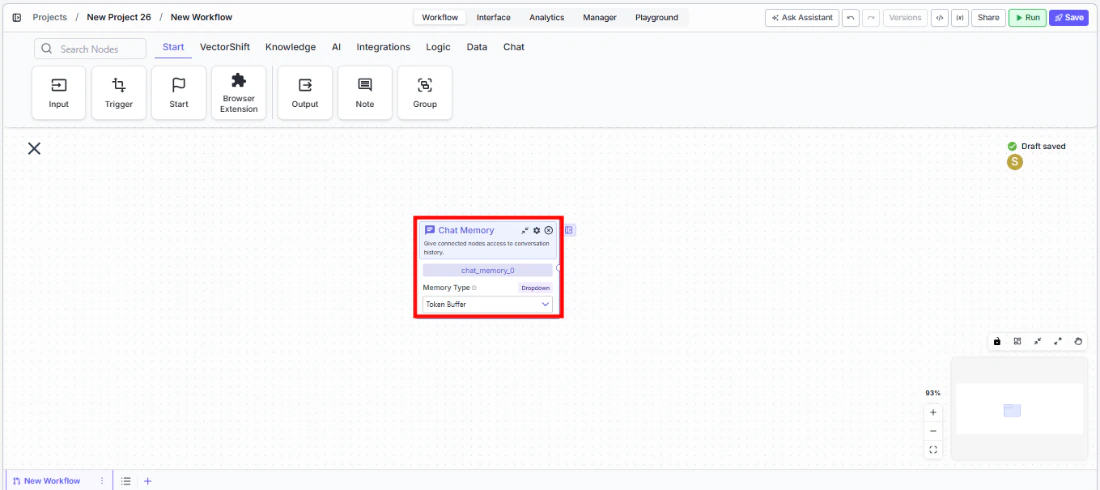
In the workflow canvas, click the **Chat** tab in the node palette and click **Chat Memory**. Drag it onto the canvas.
## Tool Outputs
* `memory` — Text. The conversation history in the format of the selected memory type.
***
### Overview
In workflows, the Chat Memory node connects to an LLM node to provide conversation context. When deployed as a chatbot, the node captures each exchange and feeds the relevant history back to the LLM on every turn — so the model can reference previous messages, follow up on earlier topics, and maintain a coherent conversation. The memory type you choose controls how history is formatted and how much is retained.
### Use Cases
* Build a financial advisor chatbot that remembers earlier questions about portfolio allocations and references them in follow-up answers
* Create a customer support bot that tracks the full issue progression across multiple messages without losing context
* Power an onboarding assistant that guides users through a multi-step process and recalls answers from earlier steps
* Enable a research chatbot that builds on prior analysis, referencing data points mentioned in previous turns
* Implement a compliance Q\&A bot that remembers which regulations have already been discussed to avoid repetition
### How It Works
#### Step 1: Add the Chat Memory Node
In the workflow canvas, click the **Chat** tab in the node palette and click **Chat Memory**. Drag it onto the canvas.
 #### Step 2: Select a Memory Type
Use the `Memory Type` dropdown on the node to choose how conversation history is stored and retrieved:
* **Token Buffer** (default) — Best for most use cases. Keeps as many recent messages as fit within the token window.
* **Message Buffer** — Returns a fixed number of recent messages. Use when you want a predictable history length.
* **Full - Formatted** — Returns the entire conversation history. Use for short conversations where you want full context.
* **Full - Raw** — Returns history as a structured list. Use when downstream processing needs raw message objects.
* **Vector Database** — Returns semantically similar messages instead of recent ones. Use for long conversations where only relevant context matters.
#### Step 3: Configure the Memory Window
Click the settings icon to open the Settings panel. Adjust `Token Window` based on your memory type:
* For **Token Buffer**: set the maximum number of tokens (default: 2048). The node returns messages from most recent backward until adding another would exceed this limit.
* For **Message Buffer**: set the number of messages to keep (default: 10).
* For **Vector Database**: set the number of similar messages to retrieve (default: 20).
* **Full - Formatted** and **Full - Raw** do not use a memory window — they return everything.
#### Step 4: Connect to an LLM Node
Connect the `memory` output to the LLM node's `System` or `Chat History` input. The LLM receives the formatted conversation history and uses it as context for generating responses.
#### Step 5: Deploy and Test
Deploy the workflow as a chatbot. Send multiple messages and verify that the LLM's responses reflect awareness of previous turns.
### Settings
| Setting | Type | Default | Description |
| ------------------------------ | -------- | -------------- | ----------------------------------------------------------------------------------------- |
| `Memory Type` | Dropdown | Token Buffer | The strategy for storing and retrieving conversation history. |
| `Token Window` | Integer | Varies by type | Memory window size. 2048 for Token Buffer, 10 for Message Buffer, 20 for Vector Database. |
| `Show Success/Failure Outputs` | Toggle | Off | Show additional success/failure output handles. |
### Best Practices
* **Use Token Buffer for most chatbots.** It automatically manages context size and prevents exceeding LLM token limits — ideal for financial advisor or support bots with unpredictable conversation lengths.
* **Match Token Window to your LLM's context budget.** If your LLM has a 4096-token context and you need room for the system prompt and current message, set the memory window to 2048 or less.
* **Use Vector Database for long-running sessions.** In conversations that may span dozens of turns (e.g., ongoing compliance reviews), Vector Database retrieves only the most relevant prior messages instead of recent ones.
* **Use Full - Raw when you need structured parsing.** If downstream nodes need to process individual messages (e.g., counting user questions or extracting specific turns), Full - Raw provides a parseable list format.
* **Avoid Full modes for long conversations.** Full - Formatted and Full - Raw return the entire history. For conversations that may grow long, this can exceed LLM context limits — use Token Buffer or Message Buffer instead.
### Related Templates
Handles common customer inquiries and support tickets through conversational AI.
Assists banking customers with account inquiries, transactions, and product questions.
Handles investor inquiries related to portfolios, statements, and fund performance.
Answers employee questions about internal policies and flags potential compliance issues.
### Common Issues
For help with common configuration issues, see the [Common Issues](/support) page.
#### Step 2: Select a Memory Type
Use the `Memory Type` dropdown on the node to choose how conversation history is stored and retrieved:
* **Token Buffer** (default) — Best for most use cases. Keeps as many recent messages as fit within the token window.
* **Message Buffer** — Returns a fixed number of recent messages. Use when you want a predictable history length.
* **Full - Formatted** — Returns the entire conversation history. Use for short conversations where you want full context.
* **Full - Raw** — Returns history as a structured list. Use when downstream processing needs raw message objects.
* **Vector Database** — Returns semantically similar messages instead of recent ones. Use for long conversations where only relevant context matters.
#### Step 3: Configure the Memory Window
Click the settings icon to open the Settings panel. Adjust `Token Window` based on your memory type:
* For **Token Buffer**: set the maximum number of tokens (default: 2048). The node returns messages from most recent backward until adding another would exceed this limit.
* For **Message Buffer**: set the number of messages to keep (default: 10).
* For **Vector Database**: set the number of similar messages to retrieve (default: 20).
* **Full - Formatted** and **Full - Raw** do not use a memory window — they return everything.
#### Step 4: Connect to an LLM Node
Connect the `memory` output to the LLM node's `System` or `Chat History` input. The LLM receives the formatted conversation history and uses it as context for generating responses.
#### Step 5: Deploy and Test
Deploy the workflow as a chatbot. Send multiple messages and verify that the LLM's responses reflect awareness of previous turns.
### Settings
| Setting | Type | Default | Description |
| ------------------------------ | -------- | -------------- | ----------------------------------------------------------------------------------------- |
| `Memory Type` | Dropdown | Token Buffer | The strategy for storing and retrieving conversation history. |
| `Token Window` | Integer | Varies by type | Memory window size. 2048 for Token Buffer, 10 for Message Buffer, 20 for Vector Database. |
| `Show Success/Failure Outputs` | Toggle | Off | Show additional success/failure output handles. |
### Best Practices
* **Use Token Buffer for most chatbots.** It automatically manages context size and prevents exceeding LLM token limits — ideal for financial advisor or support bots with unpredictable conversation lengths.
* **Match Token Window to your LLM's context budget.** If your LLM has a 4096-token context and you need room for the system prompt and current message, set the memory window to 2048 or less.
* **Use Vector Database for long-running sessions.** In conversations that may span dozens of turns (e.g., ongoing compliance reviews), Vector Database retrieves only the most relevant prior messages instead of recent ones.
* **Use Full - Raw when you need structured parsing.** If downstream nodes need to process individual messages (e.g., counting user questions or extracting specific turns), Full - Raw provides a parseable list format.
* **Avoid Full modes for long conversations.** Full - Formatted and Full - Raw return the entire history. For conversations that may grow long, this can exceed LLM context limits — use Token Buffer or Message Buffer instead.
### Related Templates
Handles common customer inquiries and support tickets through conversational AI.
Assists banking customers with account inquiries, transactions, and product questions.
Handles investor inquiries related to portfolios, statements, and fund performance.
Answers employee questions about internal policies and flags potential compliance issues.
### Common Issues
For help with common configuration issues, see the [Common Issues](/support) page.